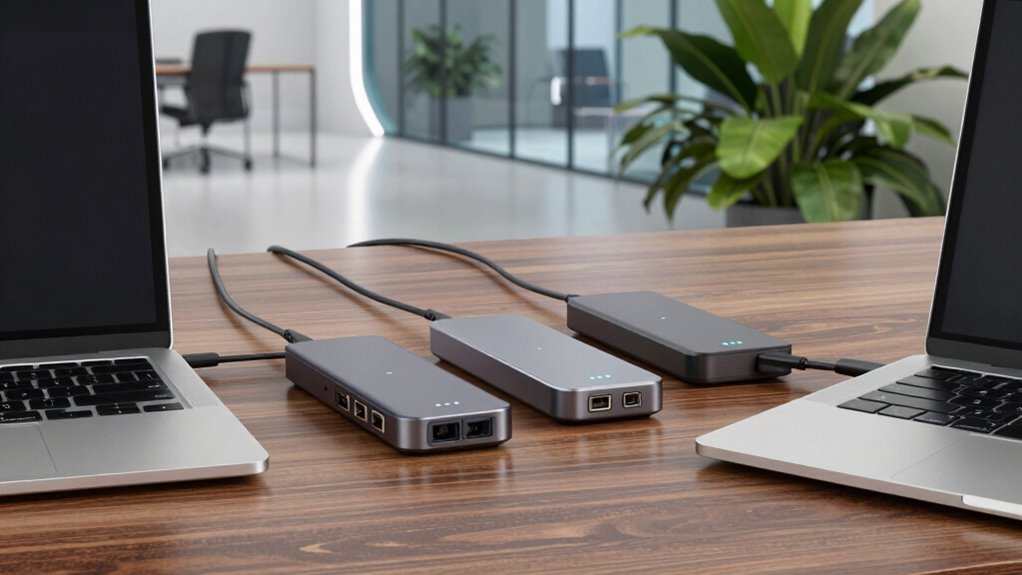

If you’re searching for Thunderbolt docks for MacBook Pro, the Plugable Thunderbolt 4 Dock (TBT4-UD5) is the best overall pick — it hits the sweet spot of 100W charging, 13 ports, and reliable dual-display support at a mid-range price. Two other standouts: the Anker Prime Thunderbolt 5 Dock for anyone who wants future-proof bandwidth for high-refresh 4K/8K displays, and the budget-friendly MOKiN dual-monitor adapter if you just need basic HDMI expansion without a full desk dock. The main tradeoff in this category is between true Thunderbolt passthrough (fast, clean, expensive) and DisplayLink or USB-C alternatives (cheaper, but driver-dependent and less powerful). There’s also the question of port count versus footprint — a 16-port monster behaves very differently on a desk than a slim hub. Keep reading for the full breakdown of all eight options and which one fits your setup.

Get office and shipping supplies delivered free — and shop member deals
- Fast, free delivery on millions of items
- Access to Prime Big Deal Days deals on October 6–7
- Prime Video, Amazon Music and more included
Key Takeaways
- The Plugable TBT4-UD5 won best overall because it balances 100W charging, 13 ports, and dual HDMI at a price well below the Thunderbolt 5 options — most MacBook Pro owners simply don’t need more than Thunderbolt 4 bandwidth.
- DisplayLink-based docks (the Plugable UD-6950PDH) are the only affordable way to run dual external 4K displays on Apple Silicon Macs, but they require driver installation and can struggle with video playback and gaming.
- Thunderbolt 5 docks like the Anker Prime only pay off if you have an M4 Pro/Max MacBook Pro and high-bandwidth displays — pairing one with a base-model MacBook wastes most of its capability.
- Port count doesn’t equal value: the 16-in-1 Plugable and the 13-port TBT4-UD5 overlap heavily, and the cheaper 13-port model covers nearly every realistic desk setup.
- Compact hubs (Satechi Slim, Anker 547) trade port selection and multi-monitor support for travel-friendliness — the Anker 547 is really a portable adapter, not a desk dock, and should be judged on those terms.
| Plugable USB-C Laptop Docking Station with Dual 4K 60Hz DisplayLink, 100W Charging (UD-6950PDH) |  | Best Overall for Versatile Dual-Display MacBook Setup | Ports: 14-in-1 (2x HDMI, 2x DisplayPort, USB-C, USB-A, 3x USB 3.0, SD, microSD, audio, Ethernet) | Max Display Output: 2x 4K @ 60Hz | Power Delivery: 100W | VIEW ON AMAZON | See Our Full Breakdown |
| MOKiN MacBook Pro Docking Station Dual Monitor MacBook Pro/Air HDMI Adapter |  | Best for Budget-Conscious Dual Monitor Expansion | Ports: 2x HDMI, USB 3.0×3, USB 2.0, SD/TF card readers, Ethernet | Max Resolution: 4K@60Hz (single HDMI), 4K@30Hz (dual HDMI) | Power Delivery: 100W | VIEW ON AMAZON | See Our Full Breakdown |
| Plugable Thunderbolt 4 Dock (TBT-UDM) for M4/M5 MacBook Air & Pro |  | Best for Extensive Thunderbolt Connectivity and Power | Ports: 1x Thunderbolt 4, 1x USB-C, 4x USB-A, SD/microSD, Ethernet, audio, dual HDMI | Max Displays: Dual 4K@60Hz or single 6K | Power Delivery: 100W | VIEW ON AMAZON | See Our Full Breakdown |
| Plugable Thunderbolt 4 Dock with 100W Charging, Dual HDMI, 13 Ports (TBT4-UD5) |  | Best for Versatile Professional Setups and IT Deployment | Ports: 2x HDMI, 1x Thunderbolt 4, 4x USB, SD/microSD, Ethernet, audio | Max Display Support: Single 8K or dual 4K@60Hz | Power Delivery: 100W | VIEW ON AMAZON | See Our Full Breakdown |
| Plugable 16-in-1 Thunderbolt 4 Dock – Dual 4K Monitors for M4/M5 MacBook Air/Pro, 100W Charging, 2X HDMI, 2X DisplayPort, 2.5G Ethernet, 7X USB, MicroSD/SD Card Reader, Windows & USB4 Compatible |  | Best for High-End Dual Monitor and Peripheral Power Users | Ports: 2x HDMI, 2x DisplayPort, Thunderbolt 4, USB 7x, Ethernet 2.5G, SD/microSD, audio | Max Display Resolution: Dual 4K@60Hz or single 8K | Power Delivery: 100W | VIEW ON AMAZON | See Our Full Breakdown |
| Anker Prime TB5 Docking Station, 14-in-1 Thunderbolt 5 Dock for Laptops |  | Best Overall Thunderbolt Dock for Power and Versatility | Ports: 14 total (Thunderbolt 5 upstream/downstream, USB-C, USB-A, SD/TF, Ethernet, HDMI/DisplayPort, audio | Total USB Ports: 8 | Max Data Transfer: 120Gbps | VIEW ON AMAZON | See Our Full Breakdown |
| Satechi Thunderbolt 4 Slim Hub Pro Docking Station with 100W USB-C Charging |  | Best Compact Thunderbolt 4 Dock for Dual Display and Port Expansion | Ports: 3 Thunderbolt 4, USB-A, Ethernet, SD card reader | Host Charging: Up to 100W | Display Support: Dual 4K@60Hz or 8K@30Hz | VIEW ON AMAZON | See Our Full Breakdown |
| Anker 547 USB-C Hub (7-in-2) for MacBook |  | Best Budget-Friendly Multiport Hub for Basic Expansion | Ports: Multi-function USB-C, USB-A, HDMI, SD/microSD | HDMI Resolution: 4K@60Hz | Multi-function USB-C Display: 5K@60Hz | VIEW ON AMAZON | See Our Full Breakdown |
| thunderbolt docks for macbook pro | Ports | Compatibility | Power Delivery | Material |
|---|---|---|---|---|
| Plugable USB-C Laptop Docking | 14-in-1 (2x HDMI, 2x DisplayPort, USB-C, USB-A, 3x USB 3.0, SD, microSD, audio, Ethernet) | macOS 11+, Windows 10+, ChromeOS | 100W | — |
| MOKiN MacBook Pro Docking Stat | 2x HDMI, USB 3.0×3, USB 2.0, SD/TF card readers, Ethernet | MacBook Pro/Air 2018-2021 | 100W | — |
| Plugable Thunderbolt 4 Dock | 1x Thunderbolt 4, 1x USB-C, 4x USB-A, SD/microSD, Ethernet, audio, dual HDMI | M4/M5 MacBook Air & Pro, Windows with Thunderbolt 4 | 100W | Space gray aluminum |
| Plugable Thunderbolt 4 Dock wi | 2x HDMI, 1x Thunderbolt 4, 4x USB, SD/microSD, Ethernet, audio | MacBook M4/M5, Windows with Thunderbolt 4 | 100W | Aluminum |
| Plugable 16-in-1 Thunderbolt 4 | 2x HDMI, 2x DisplayPort, Thunderbolt 4, USB 7x, Ethernet 2.5G, SD/microSD, audio | M4/M5 MacBook Air & Pro, Windows with Thunderbolt 4 | 100W | Aluminum |
| Anker Prime TB5 Docking Statio | 14 total (Thunderbolt 5 upstream/downstream, USB-C, USB-A, SD/TF, Ethernet, HDMI/DisplayPort, audio | — | — | — |
| Satechi Thunderbolt 4 Slim Hub | 3 Thunderbolt 4, USB-A, Ethernet, SD card reader | — | — | Premium aluminum |
| Anker 547 USB-C Hub | Multi-function USB-C, USB-A, HDMI, SD/microSD | MacBook Air/Pro, limited dual display support on M1/M2/M3 | — | — |
More Details on Our Top Picks
Plugable USB-C Laptop Docking Station with Dual 4K 60Hz DisplayLink, 100W Charging (UD-6950PDH)
This dock stands out for enabling dual 4K 60Hz displays on Macs that natively support only one, thanks to DisplayLink technology. Compared with the Thunderbolt options, it offers broader compatibility with older Macs and operating systems, but it requires driver installation and doesn’t support HDCP-protected content. Its 14-in-1 port array provides extensive connectivity, including Ethernet, card readers, and multiple USB ports, all in a premium aluminum housing. The 100W charging passthrough simplifies power needs, making it ideal for a clutter-free workspace. However, the reliance on drivers can introduce compatibility hiccups, especially with firmware updates, and the lack of HDCP support limits protected content viewing. This dock is best suited for users needing multiple high-res displays and broad device compatibility while tolerating driver dependencies.
Pros:- Enables dual 4K 60Hz displays on Macs that natively support only one
- Extensive connectivity with 14 ports including Ethernet and card readers
- 100W charging streamlines power management
Cons:- Requires driver installation for full functionality
- No HDCP support limits protected content playback
Best for: Power users who need dual 4K displays and comprehensive port options on Macs with complex peripheral setups.
Not ideal for: Content creators regularly working with protected HDCP media, due to HDCP limitations.
- Ports:14-in-1 (2x HDMI, 2x DisplayPort, USB-C, USB-A, 3x USB 3.0, SD, microSD, audio, Ethernet)
- Max Display Output:2x 4K @ 60Hz
- Power Delivery:100W
- Technology:DisplayLink
- Housing:Premium aluminum, space gray
- Compatibility:macOS 11+, Windows 10+, ChromeOS
Our verdict“This dock offers unmatched versatility for users who prioritize dual high-res displays and comprehensive connectivity over plug-and-play simplicity.”
MOKiN MacBook Pro Docking Station Dual Monitor MacBook Pro/Air HDMI Adapter
This compact adapter provides a straightforward way to connect two external monitors to recent MacBook Pros and Airs, supporting up to 4K@60Hz via single HDMI or dual HDMI at 30Hz. Compared with the more feature-rich Thunderbolt docks, it sacrifices ports and advanced features for affordability and simplicity, making it ideal for users who only need a dual display setup without extra peripherals. Its design is slim and lightweight, but it doesn’t support Apple’s USB SuperDrive and offers limited data transfer speeds compared to full docking stations. The dual HDMI at 30Hz can be a drawback for fast-paced video editing or gaming. This pick is best suited for casual users who want a dual monitor setup without the need for extensive connectivity or high refresh rates.
Pros:- Supports dual 4K@30Hz or single 4K@60Hz monitor connection
- Affordable and lightweight, easy to carry
- Simple plug-and-play setup
Cons:- Limited to dual HDMI at 30Hz when both are used
- No support for Apple’s USB SuperDrive or extensive ports
Best for: Home office users or students who need dual screens for simple multitasking on MacBook Pro or Air.
Not ideal for: Professional content creators or gamers requiring high refresh rates and multiple peripherals.
- Ports:2x HDMI, USB 3.0×3, USB 2.0, SD/TF card readers, Ethernet
- Max Resolution:4K@60Hz (single HDMI), 4K@30Hz (dual HDMI)
- Power Delivery:100W
- Compatibility:MacBook Pro/Air 2018-2021
- Design:Aluminum, slim profile
- Driver Required:No
Our verdict“This adapter balances cost and function, making it suitable for light dual monitor use on MacBooks without complex peripheral needs.”
Plugable Thunderbolt 4 Dock (TBT-UDM) for M4/M5 MacBook Air & Pro
This Thunderbolt 4 dock is a standout for users needing maximum bandwidth and port versatility in a Mac-compatible package. It features 13 ports, including a downstream Thunderbolt 4 port, dual HDMI outputs supporting dual 4K at 60Hz or a single 6K display, and 100W charging. Compared to the M1/M2 Macs, which are limited to a single external display, this dock provides a future-proof solution that supports dual displays in M3 and M4/M5 models in clamshell mode. Its Thunderbolt 4 certification guarantees 40Gbps data transfer speeds, making it ideal for professional workflows. The main tradeoff is that base M1/M2 Macs can only support one external display, regardless of dock capabilities, which limits the benefits for those models. This dock is best for power users who want maximum port options and future-proofing on newer Macs.
Pros:- 13 ports including Thunderbolt 4 for maximum bandwidth
- Supports dual 4K 60Hz or 6K single display
- 100W charging simplifies power needs
Cons:- Limited to one external display on M1/M2 Macs
- Dual display support in M3 Macs requires clamshell mode
Best for: Creative professionals or power users with M3 or M4/M5 Macs who need dual external displays and high-speed data transfer.
Not ideal for: Owners of older Macs with M1/M2 chips who only need basic display support, as they won’t benefit from dual display capabilities.
- Ports:1x Thunderbolt 4, 1x USB-C, 4x USB-A, SD/microSD, Ethernet, audio, dual HDMI
- Max Displays:Dual 4K@60Hz or single 6K
- Power Delivery:100W
- Thunderbolt Speed:40Gbps
- Material:Space gray aluminum
- Compatibility:M4/M5 MacBook Air & Pro, Windows with Thunderbolt 4
Our verdict“This dock offers extensive connectivity and future-ready features for M3 and newer Mac users who need reliable dual displays and high-speed data transfer.”
Plugable Thunderbolt 4 Dock with 100W Charging, Dual HDMI, 13 Ports (TBT4-UD5)
This Thunderbolt 4 dock combines award-winning design with an extensive port selection suitable for complex setups. Its 13 ports include dual HDMI supporting dual 4K 60Hz or single 8K display, along with USB, SD/microSD, Ethernet, and audio. Compared with the Plugable TBT-UDM, it offers slightly more downstream ports and a dedicated upstream Thunderbolt port, making it appealing for IT environments and professional power users. Its 100W charging capability and driverless setup make it easy to deploy across varied systems, including Windows and Macs. The main limitation is that M1/M2 Macs can only support one external display, similar to the TBT-UDM, but this dock excels in versatility for newer Macs and mixed-device environments. This dock is ideal for professional setups requiring multiple peripherals and dual displays in a managed environment.
Pros:- 13 versatile ports including dual HDMI and SD/microSD
- Supports 8K or dual 4K displays
- 100W charging streamlines power management
Cons:- Limited support for dual displays on M1/M2 Macs
- Base M3 Macs require clamshell mode for dual monitor setup
Best for: IT managers or professionals needing a reliable, multi-port Thunderbolt dock for newer Macs and Windows systems.
Not ideal for: Owners of older Macs with only Thunderbolt 3 or USB-C, who may not fully leverage dual 4K support.
- Ports:2x HDMI, 1x Thunderbolt 4, 4x USB, SD/microSD, Ethernet, audio
- Max Display Support:Single 8K or dual 4K@60Hz
- Power Delivery:100W
- Certification:Thunderbolt 4
- Material:Aluminum
- Compatibility:MacBook M4/M5, Windows with Thunderbolt 4
Our verdict“This dock is perfect for professional environments needing flexible, multi-port Thunderbolt connectivity with reliable dual display support on newer Macs.”
Plugable 16-in-1 Thunderbolt 4 Dock – Dual 4K Monitors for M4/M5 MacBook Air/Pro, 100W Charging, 2X HDMI, 2X DisplayPort, 2.5G Ethernet, 7X USB, MicroSD/SD Card Reader, Windows & USB4 Compatible
This premium dock earns its place by supporting dual 4K 60Hz displays via HDMI and DisplayPort on M4 and M5 Macs, while also offering a full suite of ports including 7 USB, 2.5G Ethernet, SD/microSD, and audio. It is a standout for professionals who need to connect multiple high-speed peripherals and multiple monitors simultaneously. It supports 100W charging, making it suitable for most laptops without additional chargers, and its UL-certified design emphasizes safety. Compared to single-display docks, this provides a comprehensive workspace solution for demanding workflows. The main limitation revolves around its size and cost—more than necessary for users with minimal peripheral needs—plus some limitations on older Mac models that only support one external display. This dock is best suited for power users who need maximum expandability and dual high-res displays on M4/M5 Macs.
Pros:- Supports dual 4K@60Hz displays via HDMI and DisplayPort
- Offers 7 USB ports plus 2.5G Ethernet
- 100W charging for seamless power management
Cons:- Large and expensive for minimal setups
- Limited compatibility with older Macs supporting only a single display
Best for: Content creators and professionals requiring extensive peripherals and dual 4K displays on latest MacBook models.
Not ideal for: Casual users or those with older Macs only supporting single external displays, due to overcapacity and higher cost.
- Ports:2x HDMI, 2x DisplayPort, Thunderbolt 4, USB 7x, Ethernet 2.5G, SD/microSD, audio
- Max Display Resolution:Dual 4K@60Hz or single 8K
- Power Delivery:100W
- Certification:Thunderbolt 4
- Material:Aluminum
- Compatibility:M4/M5 MacBook Air & Pro, Windows with Thunderbolt 4
Our verdict“This dock excels for high-demand professional workflows, offering extensive ports and dual high-res display support for the latest MacBook models.”
Anker Prime TB5 Docking Station, 14-in-1 Thunderbolt 5 Dock for Laptops
The Anker Prime TB5 stands out as the most comprehensive Thunderbolt dock, offering an impressive 14 ports, including two Thunderbolt 5 downstream ports, which surpass the capabilities of the Satechi Thunderbolt 4 Slim Hub Pro. Its lightning-fast data transfer—moving a 150GB file in just 25 seconds—makes it ideal for demanding workflows, while the support for dual 8K displays and 140W charging covers even the most advanced setups. The active cooling system ensures the dock runs smoothly under heavy loads, unlike passive options that risk overheating. However, its requirement for Mac OS 15 Sequoia limits compatibility with older Macs, and dual 8K output is restricted to Thunderbolt 5 Windows laptops, which may be a downside for Mac users. Overall, this dock offers unmatched port variety and speed for those who need maximum flexibility and performance.
Pros:- 14 versatile ports including Thunderbolt 5 downstream and upstream
- Exceptional data transfer speeds—150GB in 25 seconds
- Supports dual 8K@60Hz displays and 140W charging
- Active cooling prevents overheating under load
Cons:- Dual 8K output limited to Thunderbolt 5 Windows laptops
- Requires macOS 15 Sequoia or newer, restricting older Mac compatibility
Best for: Power users and professionals who require extensive connectivity, dual 8K display support, and fast data transfer in a single dock.
Not ideal for: Casual users or those with older Macs running earlier macOS versions, due to compatibility restrictions and higher price point.
- Ports:14 total (Thunderbolt 5 upstream/downstream, USB-C, USB-A, SD/TF, Ethernet, HDMI/DisplayPort, audio
- Total USB Ports:8
- Max Data Transfer:120Gbps
- Max Charging Power:140W (PD 3.1)
- Max Display Output:Dual 8K@60Hz on Thunderbolt 5 Windows laptops
- Hardware Interface:Thunderbolt
Our verdict“This dock is ideal for power users needing maximum connectivity and performance, despite its higher cost and OS requirements.”
Satechi Thunderbolt 4 Slim Hub Pro Docking Station with 100W USB-C Charging
The Satechi Thunderbolt 4 Slim Hub Pro offers a sleek, lightweight design that packs a punch with three Thunderbolt 4 ports, making it well-suited for users who want reliable performance without bulk. Its support for dual 4K displays or a single 8K at 30Hz offers flexibility for creative workflows, and the 100W charging capacity keeps your MacBook powered during intense use. Compared to the Anker Prime TB5, it sacrifices some speed and port variety for a smaller footprint, but it still delivers Thunderbolt 4’s 40Gbps performance. The passive heat management keeps things cool, but the higher price for Thunderbolt 4 technology might be a concern for budget-conscious buyers. This dock is perfect for users who prioritize portability and high-speed data and display performance in a compact form.
Pros:- Full Thunderbolt 4 performance at 40Gbps
- Supports dual 4K/60Hz or single 8K/30Hz displays
- Lightweight, premium aluminum build
- Includes 150W GaN power supply and Thunderbolt 4 cable
Cons:- Higher price point compared to other Thunderbolt 4 docks
- Limited to Thunderbolt 4/USB4 supported devices
Best for: Creative professionals or power users with MacBook Air/Pro who need dual display support and reliable data transfer in a portable package.
Not ideal for: Users requiring extensive port options or dual 8K support on Thunderbolt 5 hardware, or those on older Macs with earlier OS versions.
- Ports:3 Thunderbolt 4, USB-A, Ethernet, SD card reader
- Host Charging:Up to 100W
- Display Support:Dual 4K@60Hz or 8K@30Hz
- SD Card Reader:UHS-II (up to 312MB/s)
- USB-A Speed:Up to 10Gbps
- Material:Premium aluminum
Our verdict“This dock makes a compelling choice for portable users who need fast, reliable dual display support without sacrificing size or style.”
Anker 547 USB-C Hub (7-in-2) for MacBook
The Anker 547 USB-C Hub offers a simple yet effective expansion from just two ports to HDMI, USB-A, SD/microSD, and a multi-function USB-C port, making it ideal for everyday needs. Its support for 4K@60Hz via HDMI and 5K@60Hz via USB-C ensures decent display capabilities, though dual displays on M1, M2, and M3 MacBooks aren’t supported. The 100W pass-through charging keeps your MacBook topped up, and the 40Gb/s data transfer provides fast data movement for typical tasks. Compared to the more feature-rich docks like the Satechi or Anker Prime TB5, this hub is less versatile but offers excellent value for users who only need basic port expansion. Its smaller size and affordability make it attractive for casual or travel use, but it may fall short for heavy-duty workflows requiring multiple displays or high-speed data transfer on MacBooks with newer chips.
Pros:- Expands two ports into HDMI, USB-A, SD/microSD, and multi-function USB-C
- Supports 4K@60Hz and 5K@60Hz display output
- Pass-through 100W charging
- Compact, travel-friendly design
Cons:- Limited to single external display support on M1/M2/M3 Macs
- Less versatile than high-end Thunderbolt docks
Best for: Casual users or travelers who need quick port expansion, 4K display output, and reliable charging without the complexity or cost of high-end docks.
Not ideal for: Power users or professionals who need dual 8K support or extensive port options, especially on M1/M2/M3 Macs that don’t support multiple external displays.
- Ports:Multi-function USB-C, USB-A, HDMI, SD/microSD
- HDMI Resolution:4K@60Hz
- Multi-function USB-C Display:5K@60Hz
- Max Charging Power:100W
- Data Transfer Speed:40 Gb/s
- Compatibility:MacBook Air/Pro, limited dual display support on M1/M2/M3
Our verdict“This hub suits casual users or travelers needing basic port expansion and decent display support at an affordable price, but it isn’t ideal for heavy multitasking or professional workflows.”
How We Picked
I evaluated each dock through the lens of what MacBook Pro owners actually do: run one or two external displays, keep the laptop charged through a single cable, and connect peripherals without bandwidth bottlenecks. The criteria that separated the field were charging power (90W+ matters for 14- and 16-inch MacBook Pros under load), display support on Apple Silicon (which is capped by the Mac, not the dock, unless you use DisplayLink), connection technology (Thunderbolt 4/5 versus USB-C alternate mode versus DisplayLink), and port mix versus price.
Ranking favored docks that solve real MacBook Pro problems without overcharging for capability the laptop can’t use. That’s why the TBT4-UD5 outranks the pricier Anker Prime TB5 for most buyers, and why compact hubs sit lower despite strong build quality — they simply don’t deliver the single-cable desk experience that defines this category. DisplayLink docks earned a mid-tier spot because they uniquely enable dual 4K on base-model Macs, but driver dependence and occasional video quirks kept them off the top of the list.
| thunderbolt docks for macbook pro | Compatibility | Material |
|---|---|---|
| Plugable USB-C Laptop Docking | macOS 11+, Windows 10+, ChromeOS | — |
| MOKiN MacBook Pro Docking Stat | MacBook Pro/Air 2018-2021 | — |
| Plugable Thunderbolt 4 Dock | M4/M5 MacBook Air & Pro, Windows with Thunderbolt 4 | Space gray aluminum |
| Plugable Thunderbolt 4 Dock wi | MacBook M4/M5, Windows with Thunderbolt 4 | Aluminum |
| Plugable 16-in-1 Thunderbolt 4 | M4/M5 MacBook Air & Pro, Windows with Thunderbolt 4 | Aluminum |
| Anker Prime TB5 Docking Statio | — | — |
| Satechi Thunderbolt 4 Slim Hub | — | Premium aluminum |
| Anker 547 USB-C Hub | MacBook Air/Pro, limited dual display support on M1/M2/M3 | — |
Factors to Consider When Choosing Thunderbolt Docks For Macbook Pro
Before settling on a dock, it helps to understand the quirks specific to MacBook Pro docking — Apple’s display limits, charging behavior, and silicon generations all shape which dock actually works for you.Your MacBook’s Chip Determines Your Display Limit
This is the single most misunderstood part of buying a dock for a Mac. Base-model Apple Silicon MacBooks (M1, M2, M3, M4 without Pro/Max) support only one external display natively, no matter how many ports your dock has. Pro and Max chips support two or more. If you own a base model and want dual monitors, a DisplayLink dock is your only real option — but it works through software compression, which adds driver dependency and can affect video playback smoothness. Many buyers buy a 13-port Thunderbolt dock expecting three screens and discover the limitation after checkout. Check your exact chip before you buy, not the dock’s marketing copy.
Thunderbolt 4 vs. Thunderbolt 5 vs. USB-C Hubs
Thunderbolt 4 delivers 40Gbps, which comfortably handles dual 4K displays, 2.5G Ethernet, and fast SSD access simultaneously. Thunderbolt 5 jumps to 80Gbps+ and enables high-refresh 4K or 8K multi-monitor setups — but only the M4 Pro/Max MacBook Pros have Thunderbolt 5 ports, so older laptops can’t access the extra bandwidth at all. At the bottom, plain USB-C hubs share bandwidth across everything and often can’t run two displays while charging. A common mistake is buying a Thunderbolt 5 dock for a Thunderbolt 3 or 4 Mac: it works, but you’ve paid a premium for speed you’ll never see. Match the dock’s generation to your laptop’s, or one generation above at most.
Charging Wattage: 100W Is the Real Comfort Line
A 14-inch MacBook Pro can pull over 90W under heavy load, and the 16-inch can exceed 140W. Docks rated at 60W will slowly drain your battery during sustained workloads even while plugged in. 100W charging, which most of the docks here offer, keeps 14-inch models topped off in almost any scenario; 16-inch owners should accept that the battery may sag slightly during renders or gaming. Also check whether the dock includes its power supply — some budget hubs expect you to use your own charger, which negates the one-cable desk setup. The difference between ‘charges’ and ‘charges under load’ is where cheap docks quietly disappoint.
Port Mix: Buy for What You Actually Plug In
Big port counts make good marketing but poor buying decisions. Count your real peripherals: most people need two display outputs, one Ethernet port, a couple of USB-A ports for older accessories, and an SD card slot if they shoot photo or video. 2.5G Ethernet is worth having even on gigabit internet — it future-proofs local network transfers to NAS drives. Dual HDMI versus DisplayPort matters for monitor compatibility: HDMI is easier for most desks, while DisplayPort suits high-refresh gaming monitors. Extra USB ports beyond your actual needs just add cost and desk clutter.
Desk Dock or Travel Hub: Pick One
Docks fall into two distinct products that get conflated in search results. Full desk docks stay put, power your laptop, and replace every cable on your desk with one connection. Portable hubs like the Anker 547 slide into a laptop bag and trade port count and charging power for pocketability. Trying to buy one device that does both usually produces a compromise that’s too heavy to travel with and too limited to serve as a desk anchor. If you split time between a desk and the road, a cheap hub paired with a proper dock often costs less than one do-everything unit.
Driver Requirements and macOS Updates
DisplayLink docks — including the well-priced Plugable UD-6950PDH — rely on third-party kernel extensions or drivers that must be updated after major macOS releases. Historically, macOS updates have occasionally broken DisplayLink output for weeks until a patch ships. Native Thunderbolt docks have no such dependency: they work out of the box and survive OS updates untouched. If your work depends on your monitors never going dark, that reliability difference alone can justify paying more for native Thunderbolt. Budget DisplayLink docks are best for people comfortable with occasional troubleshooting.
Frequently Asked Questions
Will a Thunderbolt 5 dock work with an older MacBook Pro?
Yes, but with a major caveat: the dock will fall back to Thunderbolt 4 speeds, which means you’re paying a premium for bandwidth your laptop physically cannot access. An M4 Pro or Max MacBook Pro has Thunderbolt 5 ports and can use the full 80Gbps+, but an M1 through M3 or base M4 model caps out at 40Gbps regardless of the dock. All your displays and peripherals will still work fine on an older machine — you just won’t get the higher refresh rates or multi-8K configurations that Thunderbolt 5 enables. My suggestion is to buy Thunderbolt 5 only if you’ll upgrade your laptop within the dock’s lifespan or you own a Pro/Max chip today. Otherwise a Thunderbolt 4 dock like the Plugable TBT4-UD5 delivers the same real-world experience for less money.
Why can’t my M-series MacBook run two external monitors through a Thunderbolt dock?
Apple limits base-model Apple Silicon Macs (M1, M2, M3, and non-Pro M4) to a single external display at the hardware level — the dock’s port count is irrelevant because the laptop itself refuses to output a second signal. Pro, Max, and Ultra chips lift this restriction to two or more external displays. The workaround is DisplayLink technology, found in docks like the Plugable UD-6950PDH, which compresses video in software and sends it over USB. It genuinely enables dual 4K screens on base-model Macs, but it needs a driver install, uses some CPU, and can stutter during fast-motion video or gaming. If you haven’t bought the Mac yet and dual monitors matter, choosing a Pro-chip MacBook is the cleaner long-term solution.
Is 100W charging enough for a 16-inch MacBook Pro?
For most work, yes — the 16-inch MacBook Pro typically draws 60–90W during everyday tasks, so a 100W dock keeps the battery full. The catch appears under sustained heavy loads like video exports, 3D rendering, or gaming, where the machine can demand 140W. In those situations a 100W dock slows the battery drain rather than stopping it, and you may lose a few percent over a long session. It’s rarely a practical problem because heavy workloads are usually intermittent, and the battery simply tops back up afterward. If you run sustained max loads all day, keep Apple’s 140W charger on hand for those sessions and use the dock for everything else.
Do I need 2.5G Ethernet if my internet is only 1 gigabit?
Quite possibly, yes — because internet speed isn’t the only thing Ethernet does. A 2.5G port lets you transfer files to a NAS, a desktop, or another 2.5G-equipped machine at more than double gigabit speeds, which is a daily quality-of-life upgrade if you work with large video or photo libraries. It also costs dock manufacturers very little at this point, so it’s increasingly standard even on mid-priced units like the Plugable 16-in-1. The port is fully backward-compatible, so plugging into a gigabit switch or router works exactly as expected. If you never touch a local network and only use Ethernet for internet, a gigabit port performs identically and shouldn’t drive your decision.
Can I use one of these hubs instead of a full dock to save money?
It depends entirely on whether you need the hub to charge your laptop and run multiple monitors at the same time. Compact options like the Anker 547 and MOKiN adapter handle basic expansion — a display, some USB accessories, maybe an SD card — at a fraction of a dock’s price. Where they fall short is power delivery and sustained multi-display bandwidth: many hubs either pass through less than 100W or throttle display output when other ports are busy. If your desk setup is one monitor plus peripherals, a good hub may genuinely be all you need and the savings are real. The moment you want dual 4K screens, wired Ethernet, and full-speed charging through one cable, a true Thunderbolt dock stops being optional.
Conclusion
After comparing all eight options, the right choice comes down to what your desk actually demands. For best overall, the Plugable TBT4-UD5 covers charging, dual displays, and 13 ports at a fair price — it’s the dock most MacBook Pro owners should buy. The best value pick is the MOKiN dual-monitor adapter for basic HDMI expansion on a budget, while the Plugable UD-6950PDH is the value play specifically for base-model Macs that need DisplayLink to run two screens. At the premium end, the Anker Prime Thunderbolt 5 dock is the forward-looking choice for M4 Pro/Max owners who want maximum bandwidth and headroom for years. For beginners or minimalists, the Satechi Thunderbolt 4 Slim Hub keeps things simple without the driver headaches of cheaper hubs. And for specific needs: the Plugable 16-in-1 for maximum port density on a fixed desk, the TBT-UDM for a clean certified-Thunderbolt basics package, and the Anker 547 for travel, where it functions as a portable companion rather than a dock. Match the pick to your MacBook’s chip and your monitor count, and you’ll land on the right one.
Fall Picks
fall essentials
As an affiliate, we earn on qualifying purchases.